Blog Feed

Xiaomi Mi TV 4A 32-inch cinema version wifi smart network flat-panel TV


The Xiaomi Mi TV 4A (32 inches) uses a plastic housing with its entire body coming in black colour. As a result of the plastic body in use, the new Mi TV 4A  comes with a highly reduced weight which is just 3.9Kg, making it suitable to be easily carried around. When the base is attached to the TV frame, the weight goes up to 3.94Kg.

On the specifications, the Mi TV 4A features a 32-inch display with a resolution of  1,366 x 768 pixels and refresh rate of 60Hz. The TV has a viewing angle of 178 degrees. It is powered by a Quad-core 1.5GHz processor having four Cortex-A53 cores.

The graphic is powered by a Mali-450 MP3 GPU while the processor is supported by 1GB of RAM and there is 4GB of storage space available inside. The Mi TV 4A (32) also comes with two 5W stereo speakers while available interface includes two HDMI, an AV port, an S/PDIF output, DTMB, USB port and a connector.

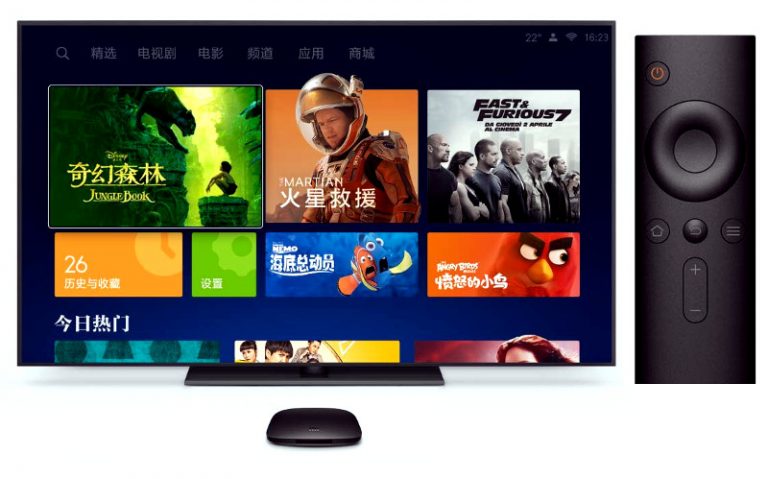
The Mi TV 4A 32-inch version also runs Xiaomi TV PatchWall system meaning it has some smart features such as content recommendation according to user’s habit, seamless streaming of content and others.

Note:

This TV does not work with DVB T2 + S2 + C and only works with DTMB, the Chinese standard.   

FAQ for Xiaomi Mi TV 4A

  • What is the input voltage of Xiaomi Mi 32 inch TV 4A?220V – 50 / 60Hz.
  • What is the power consume on standby situation?Less than 0.50W.
  • Does it support hanging on the wall?Yes, it does.
  • What is the dynamic response of this TV?6.5ms.
  • Does it support Miracast, Airplay?Yes, it does.
  • Can it work with H.265 video?It can decoding H.265 video.

This item only supports Chinese menu. The default language is Chinese. There is a Patchwall UI layer on top of the Android OS that’s based on deep learning AI technology, the Patchwall layer is ll in Chinese.

It can be changed to other languages after downloading the system settings APP, but the patchwall UI will remain in Chinese, only Apps that have multiple language interface will appear in English. All default pre-installed apps are in Chinese.


Doing more on Xiaomi MiTV 4A

As the MiTV only comes with the Chinese content, most of which requires VPN services to access as the provided contents are meant for China users due to territory copyright issues, you will need to install third party apps to access the contents of yoru choice.

You can do a lot more with Xiaomi TV with the following:

Note: as the Patchwall UI keeps on changing, some of the features and videos below are based on the time of this post were written, and may be different by the time you are reading it.

1) Changing the System settings to English

In the following video you can see how to change from Chinese to English on Xiaomi Mi TV 4A.

Please note that only the relevant system settings UI will be changed to English, all other Apps that comes with Xiaomi will remain in Chinese, as these apps do not provide English version in their UI.

Download startSettings app by the link: https://goo.gl/T9H9KK

2) Control your TV with your handphone with MiTV Assistant

Xiaomi’s MiTV Assistant App is designed specifically for Xiaomi users with IOS or Android smartphones or tablets.

Major functions:

a) Screencast – you can easily browse, search for massive video library, video collection, or projected onto a button to start playing on your TV.

b) Can be used as a virtual remote control on MiBox or MiTV. Using the remote functions to operate the TV by sliding, flipping and can operate with your eyes closed.

c) Screen capture function – through the screenshots button, you can at any time, intercept TV content by capture screenshots, and share to friends on social media

d) Search through the App for TV contents – and screen cast to the TV

Note – The phone and MiTV must be on the same network for the App to work

3) Installing third party Apps

a) Live NetTV – Live NetTV provides 800+ live TV channels in 9 categories which are: Sports, Entertainment, News, Movies, Documentary, Cooking, Music, Kids and Religious. The service is absolutely FREE.

b) Movie HD – This App allows users to Watch and Download their favorite Movies and TV Shows for free. It is an app for everyone to enjoy latest Movies and TV Shows for FREE.

Note – need to get activation code if you don;t sign in with google Account, read here

c) Redbox TV – RedBox TV is a FREE live streaming App where you can watch your favorite TV channels anytime. It has 1000+ live channels from 15 different countries

d) Mopdro – Mobdro App is one of the most popular apps in the market know for its services. With Mobdro APK, Android device users can access shows, TV channels and other programs without any subscription.

e) UKTV Now – UkTVNow is the best live video streaming application for the Android platform. You can browse live TV channels from countries like Canada, France, United Kingdom, United States, Germany, India, Spain, Italy, Pakistan etc.

f) Freeflix HQ – FreeFlix HQ is a free content streaming app that lets you watch Movies, TV Shows, Anime, Live TV and more.

g) VPlayer 7.0 – VPlayer for Android is the leading free Multimedia player for the Android operating system which allows you to watch all popular video formats on your phone or tablet.

h) AptoideTV – The optimised app store for your Set Top Box and Smart TV

4) Installing Third Apps – Aptoide TV

Since All Google Services, including Play Store are not available on many of China’s product, you will need to install a third party App Store – Aptpide, to get most of the third party App you need

https://tv.aptoide.com/

5) Screencast mirror on MiTV

In the following video, a detailed step by step procedure to mirror your android phone using Miracast which is inbuilt in the Mi TV 4. Also included in the video is a simple way to Mirror (airplay) your iPhone, iPad & MacBook to the Mi TV 4.

Tutorial How To Unblock Geo Restrictions And Watch Chinese Movies From Overseas

Configuring Lifesmart Superbowl

1) First download the LifeSmart app by scanning the QR code in the Chnese user manual, OR, use the following line to download

http://www.ilifesmart.com/download/LifeSmart.apk

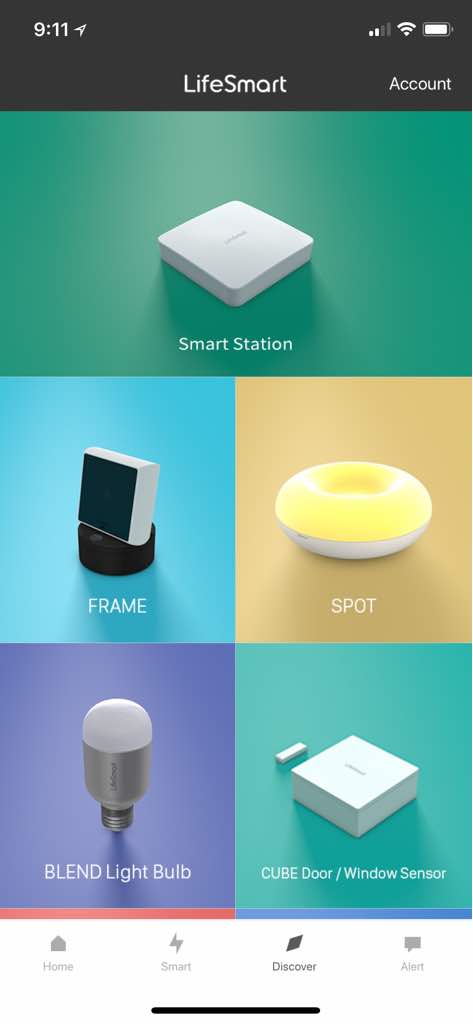
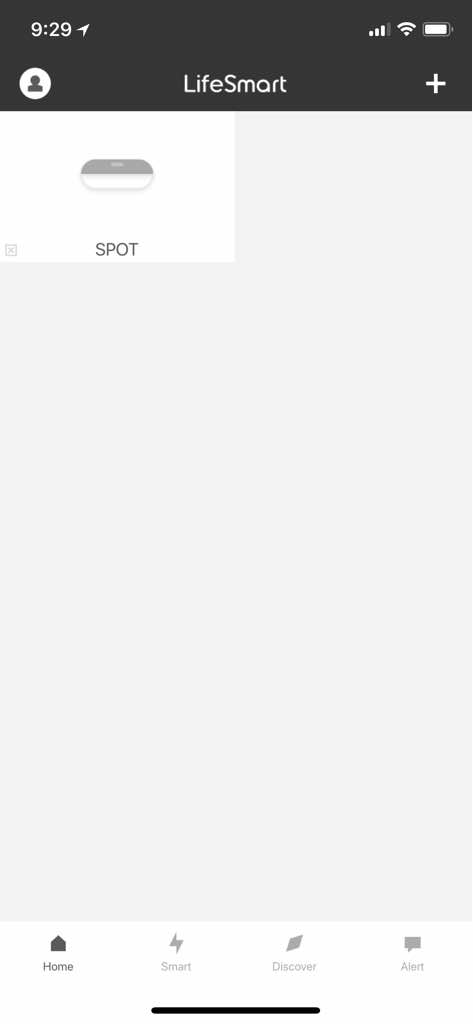
2) Smart the App, you’ll need to wait for while for the app to search the environment and after which you should see the following screen 

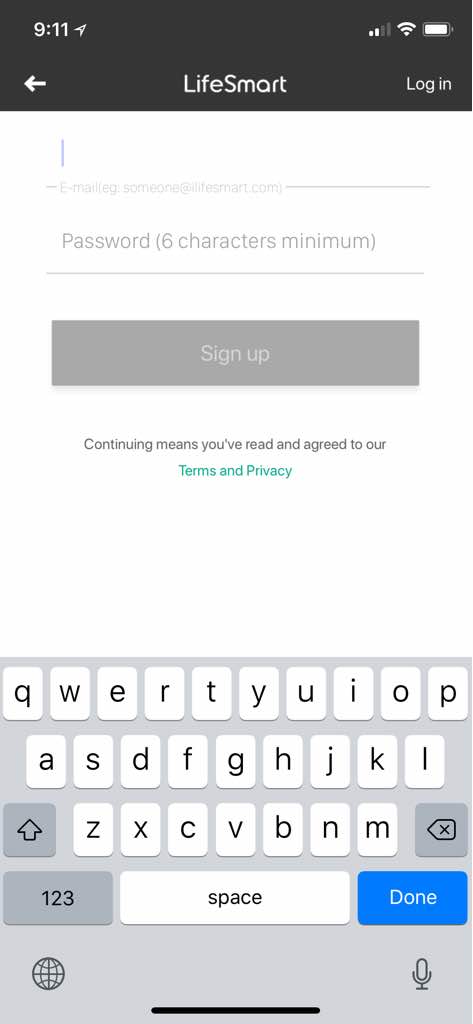
3) If you haven’t got a LifeSmart account, you can start creating one, remember, you’ll need an account to configure all your LifeSmart devices, and store all your configurations in their cloud

4) After that you can log in now

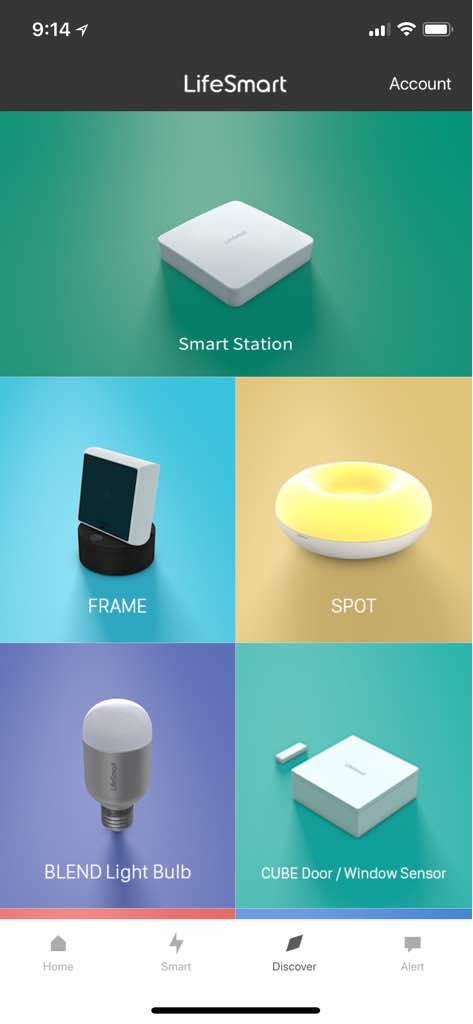
5) after login-in to the LifeSmart App, you can start adding devices to you profolio

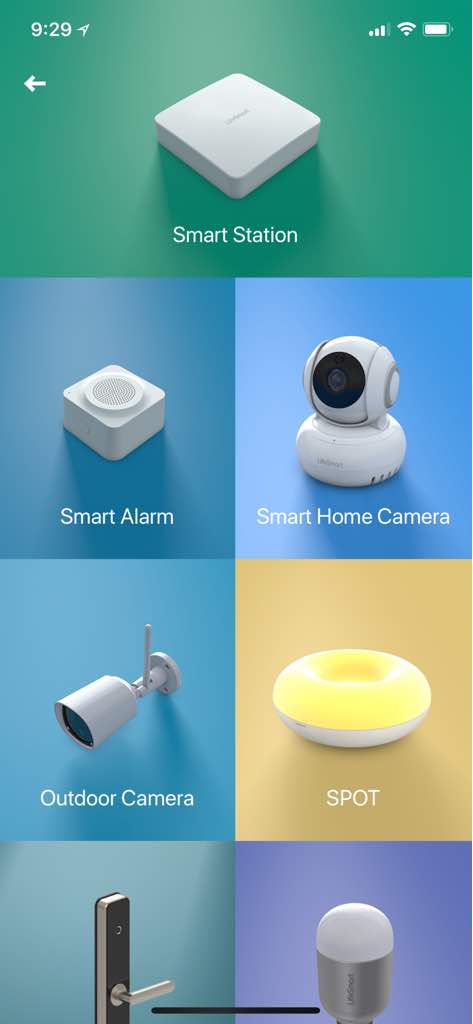
6) Select “SPOT” if you want to add your superbowl

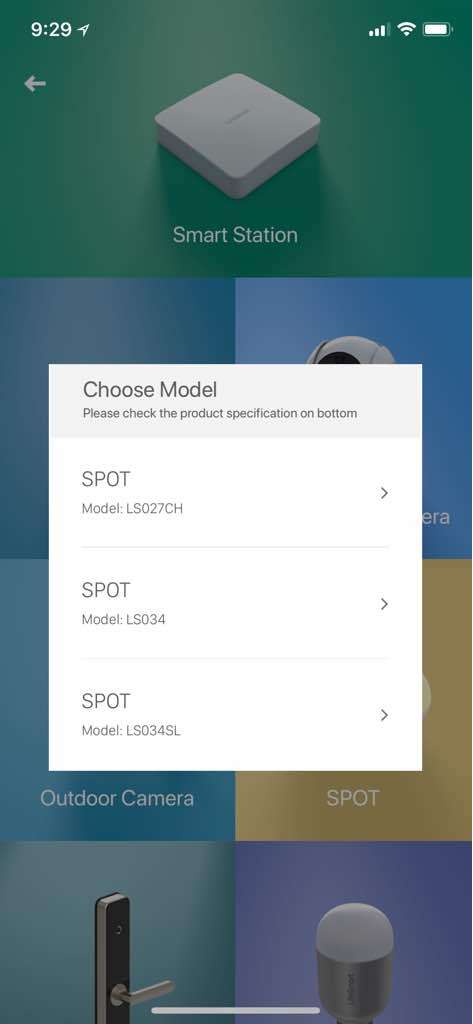
7) Select the correct model of SPOT, look at the bottom of your device for the right model to choose

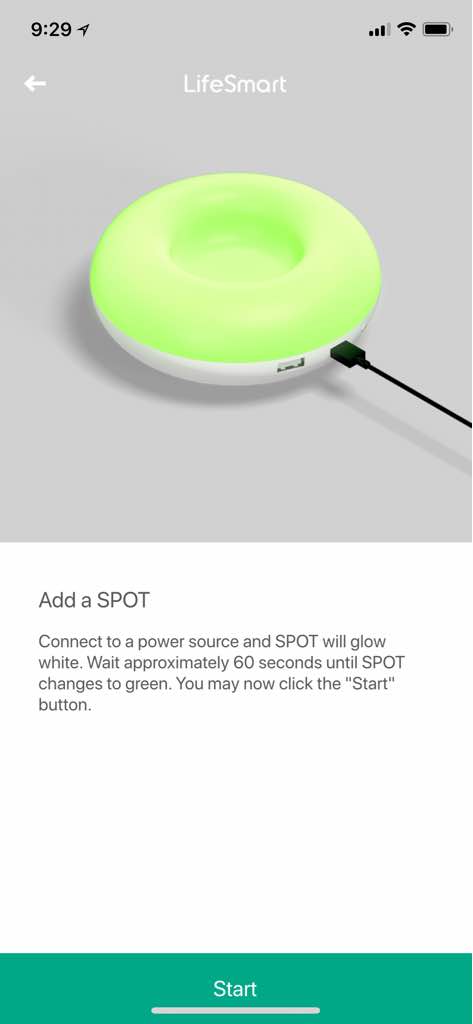
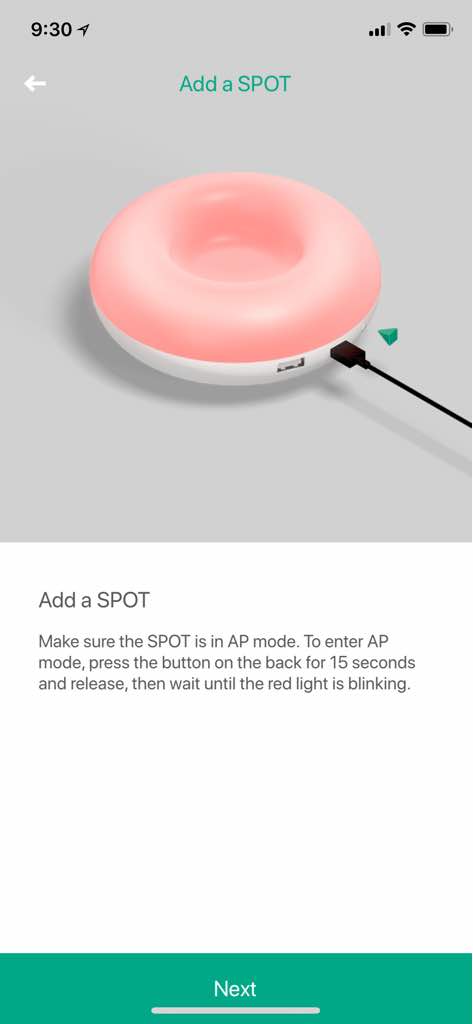
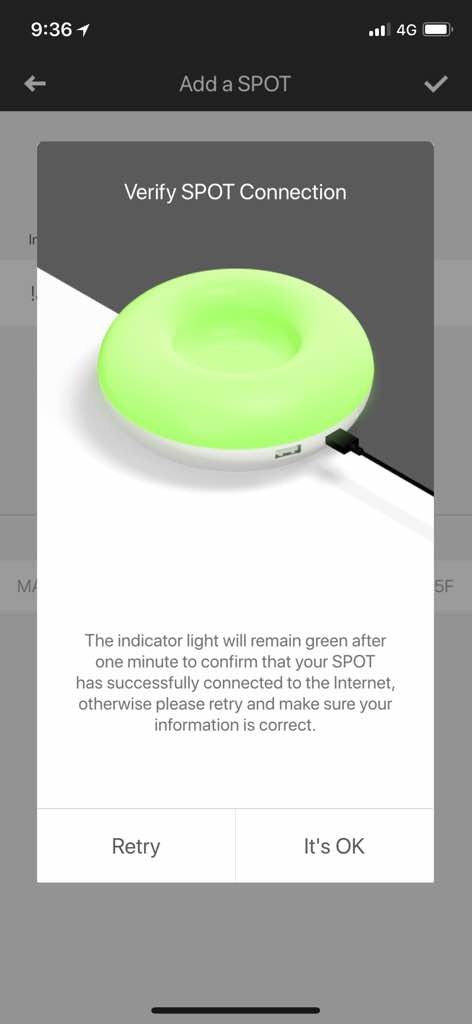
8) To add the superbowl, you connect it to the micro-USB to power-up, and it will first glow white after a few seconds, and wait for another 60 seconds for it to turn green, then you can click “START” button on the app

9) To add, the SPOT need to be in AP (access Point) mode, acting as a router. To enter AP mode, you need to press the button next to the micro-USB port on the back, for 15 seconds and then release, wait for a while until it start blinking with red light

If this does not happen, repeat 7, 8 & 9

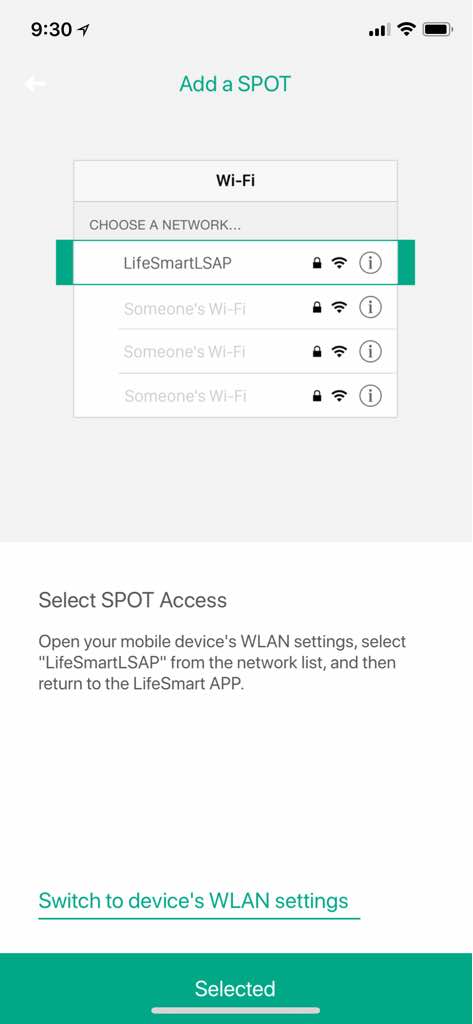
10) If there is red blinking light, press “Next”. You will first need to make SPOT the access point to connect to you home Wifi network. On your mobile phone’s wireless LAN, select “LifeSmartSAP” from the available network list, and get it connected

Then return to the LifeSmart App

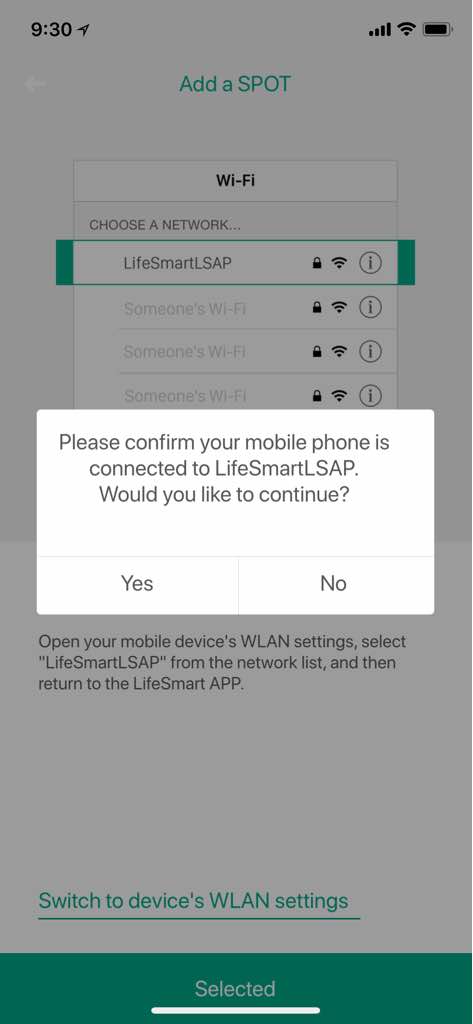
11) Confirm your mobile phone is connected to the LifeSmart App

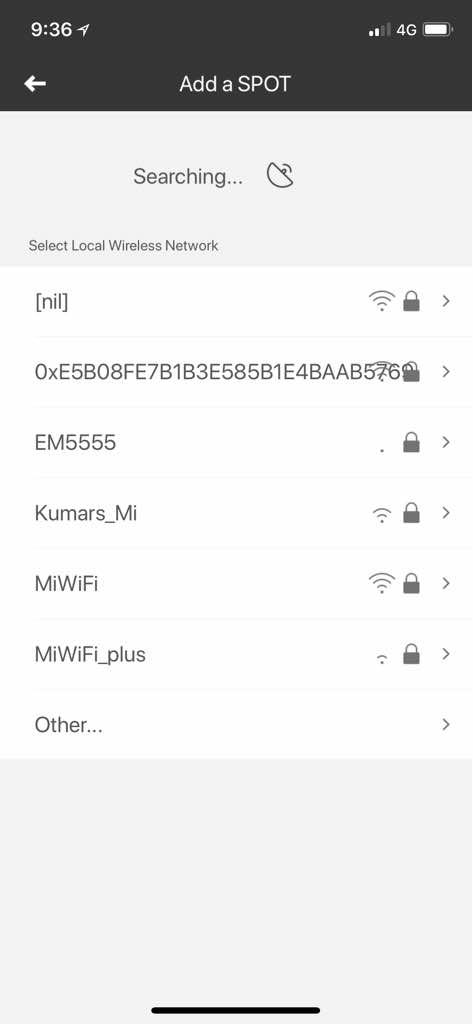
12) Select the Wifi access point you are using at home to access the Internet

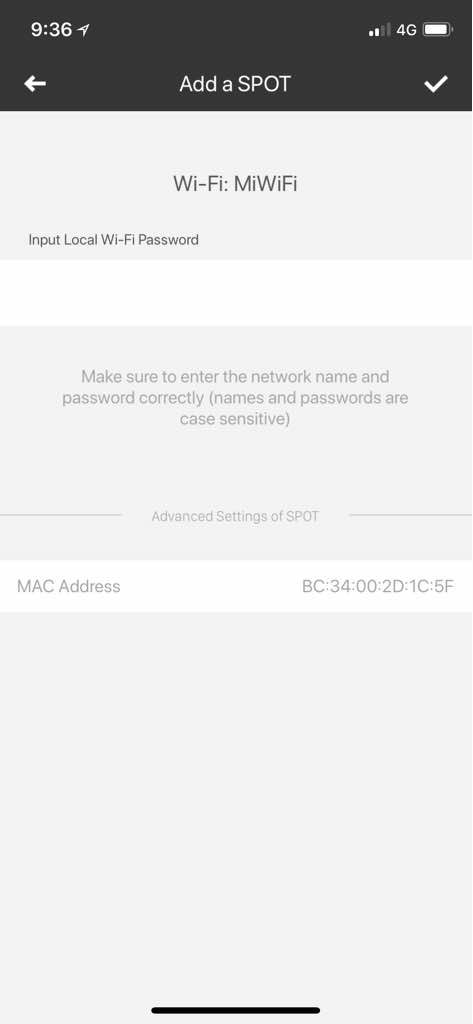
13) Enter the WiFi password to get connected 

14) You had just added the SPOT superbowl to your list of LifeSmart devices 

Xiaomi Bluetooth Remote control – Pairing and sync

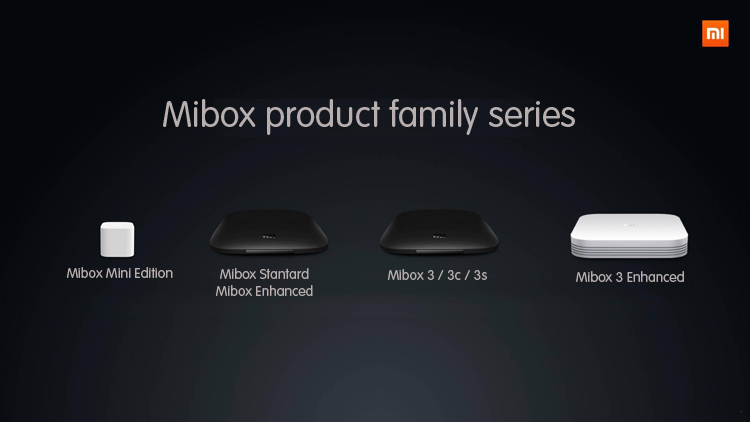
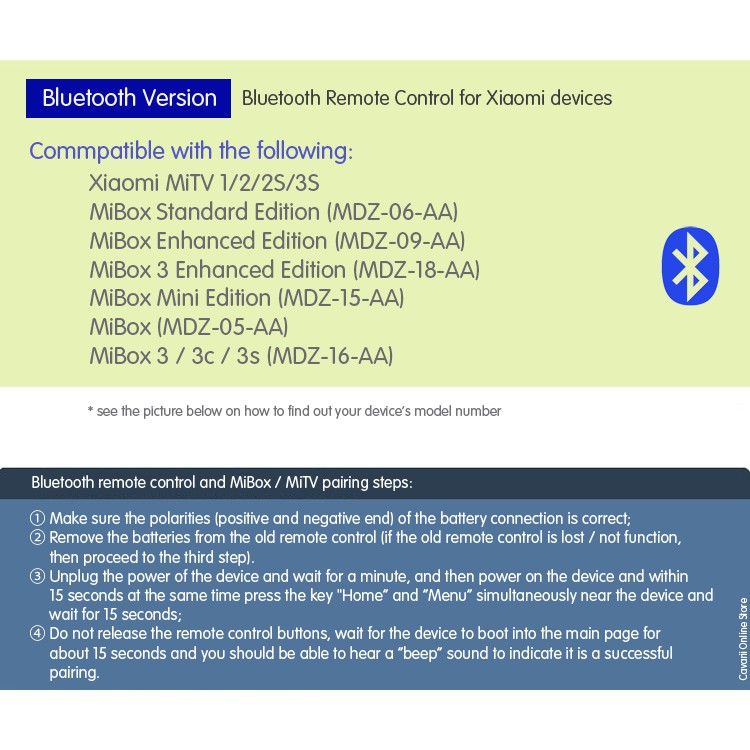
The following are the models that are supported

These boxes model are supported only

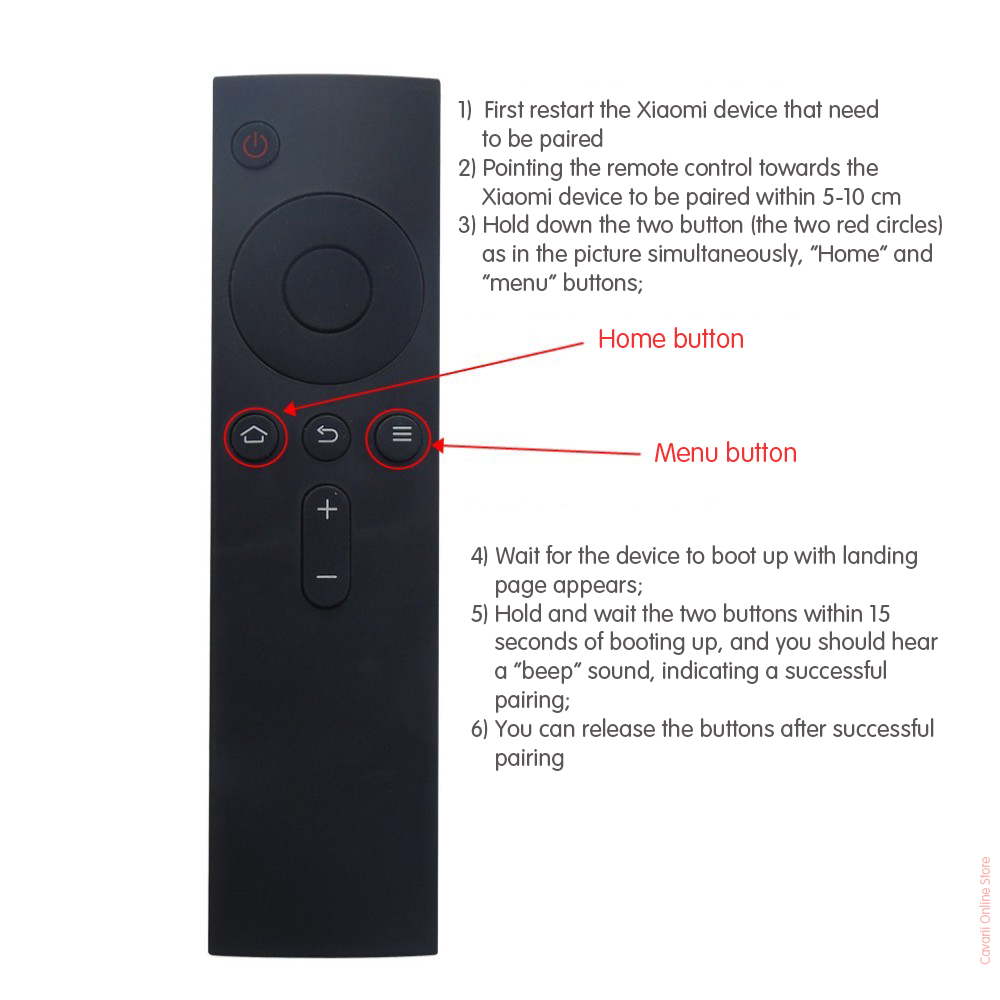
Use the following step to pair ans sync with your existing box

If you are not able to pair or sync on first try, your previous bluetooth remote may still be “paired” with the box, some boxes only allowed one bluetooth device to be paired at any one time.

It is very likely that you had lost your previous bluetooth remote, or the unit not working anymore.

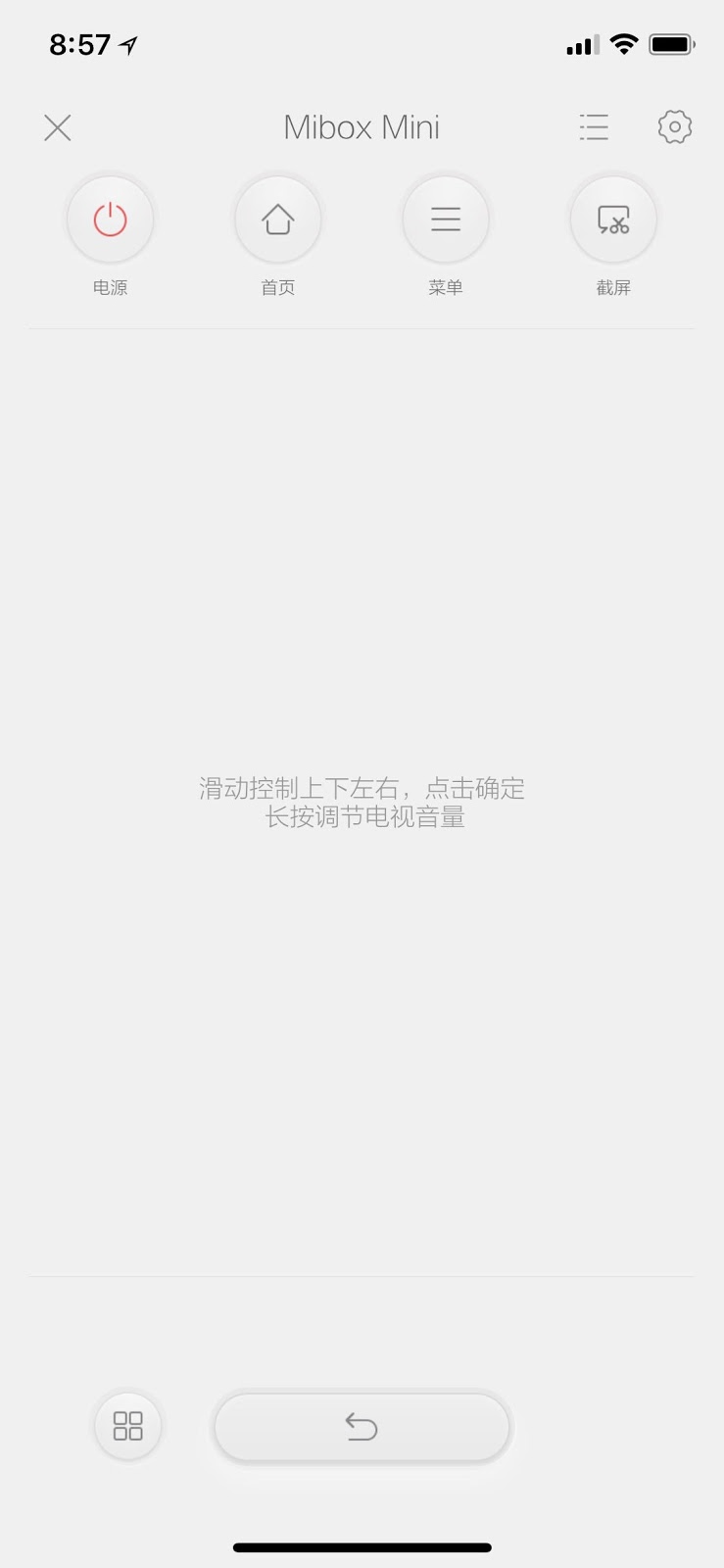
If that’s the case, you may need to download the “MiTV Assistant” (投屏神器) to log in and remove the previous bluetooth, and to pair with the new bluetooth remote

after installing, you need to connect your existing box through the app, then select the box, and you should see the following “virtual remote control”, use this virtual remote control to navigate your TV Box, go to settings, bluetooth, and remove your existing remote control

After that, try to sync and pair your new remote control again

Unlock WalkingPad

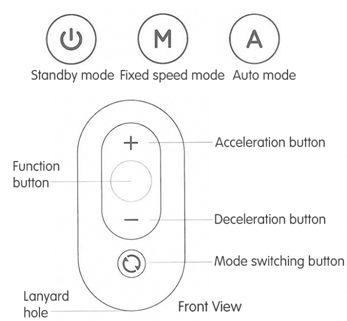
Before you start, you need to know the following buttons on the Remote Control and and different modes on LED panel of Walking Pad.

Take note which is the “Standby Mode” on WalkingPad’s LED panel, and which one is the “Function Button” and “Mode Switching button” on remote control

Now let’s start the unlock of speed

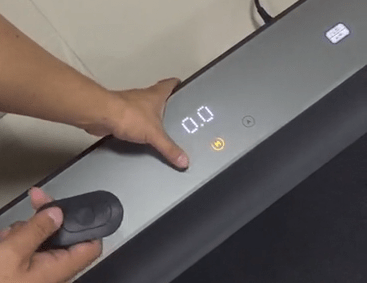
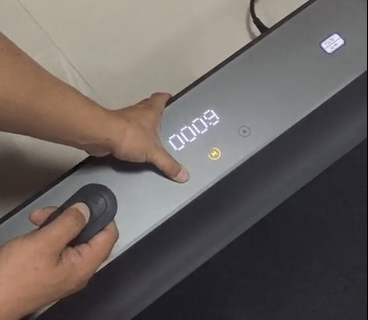
(Step 1) Using the Function button on Remote control, let the WalkingPad’s mode be set at “M”, then simultaneous press both the “Standby Mode” button on the WalkingPad LED panel, and the “Function button” on the remote control, PRESS AT THE SAME TIME, until you hear a “beep” sound
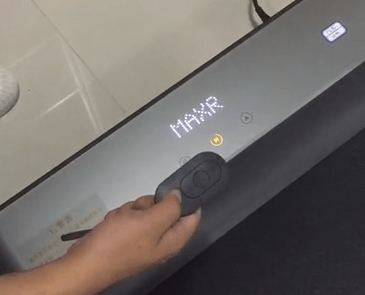
(Step 2) Then press the “Mode Switching” button on the remote control, then you should be seeing something like ..0009, then MAXR on the LED panel, then the WalkingPad is in UNLOCK MAXIMUM speed mode
(Step 3) On the remote control, press the “+” button to increase the speed from current maximum to up to 10 km/h for R1, or 6km/h for A1 & A1 Pro

When the above is done, just switch off the WalkingPad, and on again, to see if the new maximum speed had been set

Mi Purifiers filter Replacements – comparisons

Xiaomi Smart Air Purifier filters should be replaced regularly.

The frequency of replacement depends on your environment (polluted city, street with little traffic, room full of dust). The recommended replacement frequency is 3 to 6 months.

The HEPA filter of the Xiaomi Air Purifier is capable of removing 99.9% of the fine particles (PM2.5) but also the bacteria, heavy metals, viruses, formaldehyde present in the atmosphere.

There are filters compatible with activated charcoal. To be certain of the effectiveness of your Air Purifier, it is best to buy original filters.

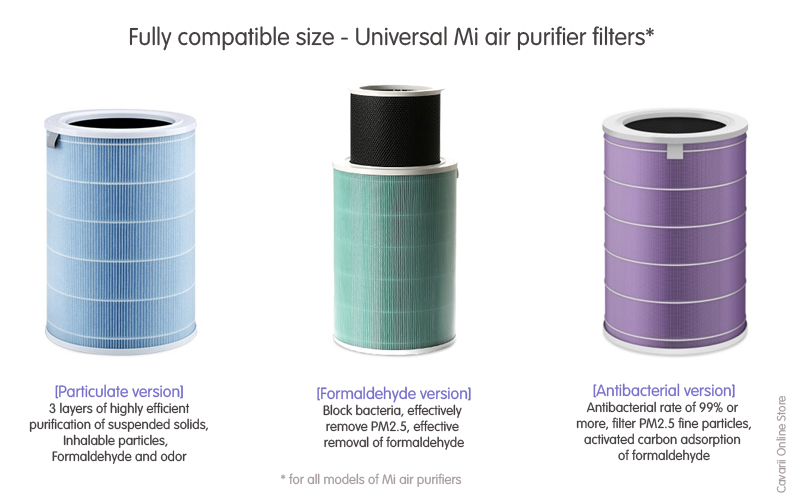
Three types of filters are available from Xiaomi:

  • Blue [Particulate Version]: economic filter consisting of 3 layers (primary filter for large particles, HEPA filter for fine particles and pollens and activated carbon to eliminate bacteria, viruses …)

  • Green [Formaldehyde version]: a more efficient filter to remove formaldehyde, benzene and ammonia. The H11 grade HEPA filter retains 99% of the PM0.3 class and 99.99% of the PM2.5 class. It is also more effective at eliminating odors like cigarette smoke.
  • Purple [Anti Bacteria version]: It has the same efficiency as the green filter. An anti-bacterial treatment eliminates bacteria and airborne pathogens.

All the filters are compatible with the different models of Xiaomi Air Purifier 1, 2, 2s and Pro, not for MAX

Xiaomi’s Miui TV version’s Patchwall

What is Patchwall?

All Xiaomi’s TV Boxes, TVs, Soundbar and the Mi Home Theatre System are all running on a special of MIUI TV version of OS, with the recent MIUI TV OS upgrades since October 2016, all interfaces had all been replaced and powered by Xiaomi`s exclusive AI-based PatchWall interface. These are some of the very first smart TV gizmos to come with AI support.

What happen to the Language Interface?

Previously, if you have access to the original Android “Settings” utilities App, you can actually change the Language interface from the default “Chinese” shipped from factory, to English and a few selected languages under Android.

There language interface for the MIUI will instantly be changed, say, From Chinese to fully in English, baring, some isolated places where Xiaomi’s team had missed out on the translation and remained in Chinese.

As for the Apps, if they are design to be multi-lingual, they will also be automatically be displayed in the language set the the Android’s language settings.

However, with the introduction of MIUI TV’s Patchwall, all language interface will remain in Chinese only, as Xiaomi did not provide the English counterpart translation in Patchwall’s interface.

You can still change some of the generic Android utilities’ language setting using this special tool, download the APK and install from a USB drive, run it and change the language setting, but as we had explained earlier, those Apps that have multiple language designed will have English interface displayed.

Download the app – https://bit.ly/2JgoDY6

Common problems facing Hurom Juicers


Most of the problem Hurom juicrr related problems are actuallu listed on the HU Series Manual that come with the Hurom juicer when we ship, most user do not bother to read through the manual, and simply go ahead with the juicer straight away after un-boxing the unit.

The following are the most common problems reported by users, and we extract portion of the instructions from the official manual

1) The juicer cannot start when power on

We do have buyers who previously had reported similar problems, however, we did advised them to try again with the following checkings before bringing or sending the unit back to us, as most of the time the unit do work when we mount the item correctly after receiving the unit that buyers had back to us.

a) Make sure power is plug in

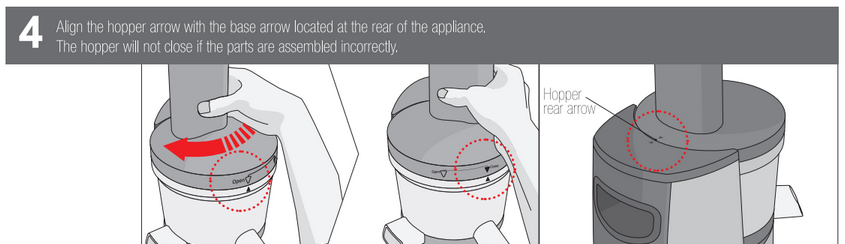
b) Proper alignment and assembly of the juicer parts

If the Juicer does not start (the following steps were found in the Hurom manual) Check if the appliance has been assembled according to the directions given in the manual. Check if the hooper is assembled properly, if the hooper has not been locked into place, the juicer will not operate for safety reasons Make sure the Chamber arrow is aligned with the hooper arrow, when you hear a “click” sound.

PS. A standalone Juicer motor base will not work standalone by itself, if the unit must be properly assembled completely,

2) Cannot separate the Hopper from the Chamber after juicing

If after juicing, during cleaning, you cannot separate the Hooper from the chamber, and they are very tightly coupled.

If the hopper and chamber is still properly mounted on the juicer base, you can try flushing excess pulp out by pouring water into the hopper, and “On” the juicer, and try to separate again.

However, if the hopper and chamber had already been dismount from the juicer base, and cannot be put back.

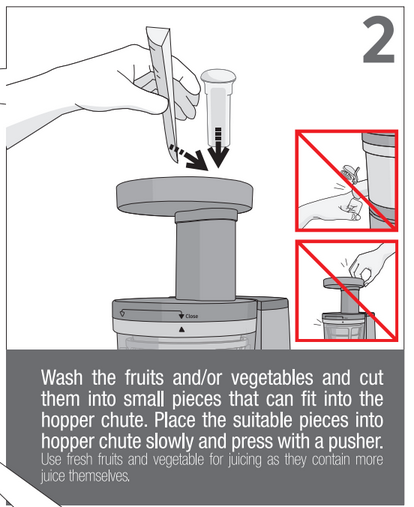
We think there should be lots of fruit pulp stuck inside during juicing, if they were not cut into smaller pieces. Please try to put the cover and chamber (without the engine body) and put them under running tap water to flush as much pulp out from the chamber (with the juice cap open), after flushing most of the pulp suck inside, you can try again, to see if you can separate the hopper from chamber.

3) Help! my Auger is broken

Hurom advise

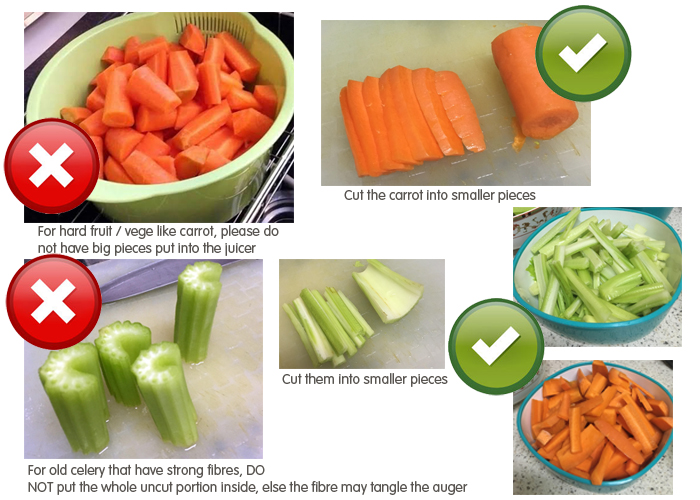
As advised by the distributor, please make sure the fruits are cut into smaller pieces, especially for hard ingredients like carrot or with strong fibres like celery, and remove any hard seeds. This could likely be the cause of the Auger being broken at the wing area. Distributor may assess the warranty claim and sometimes may reject it as rough usage of juicer, please observe the above advise.

Please cut your hard ingredient, and those with strong fibres into small pieces before

slotting into the juicer, hard fruits if put in big chunks, may break the auger and strainers.

The string fibres may tangle 

4) Can’t separate strainer from spinning brush

This video shows the proper way to eject the strainer from the Hurom’s spinning brush, just by holding the spinning brush with your fingers, and gently press the strainer from the bottom to separate them

5) Other Precautions

Hurom Video Resources – Getting started with Hurom Juicer


In your are not familiar with the Hurom Slow juicers, we had prepared a series of videos for you to know more about the various working and operations designs of the juicer

Hurom Slow Juicer – FAQ – Demonstration

This video will show you how to assemble the Hurom for both 1st and 2nd generations, before use.

It also shows you how to troubleshoot if it cannot fit into the base, or when the forward rotation

get stuck when extracting juice. It also demonstrate juicers that has the Control level valve.

Why Hurom Juice? A short Intro

This video shows the differences between a traditional speed juicer and Hurom

Hurom Slow Squeezing Technology (SST)

Video shows how the Hurom’s petented SST works

Hurom Juicer – Unique & Innovative technology of hurom

Video shows how the Hurom juicer’s various parts works

Hurom Juicer – New Hurom Style HUMAN friendly Design

Video shows how the Hurom juicer’s design ideas

The Hurom Juicer Principles of Extraction

Video shows how the Hurom juicer’s various parts works

HUROM Think Nature & Human

Nutrition from Hurom Juice

HUROM SIZZLE